
How to Fix QuickBooks Error Code 80029c4a?

What are the causes of QuickBooks Error Code 80029c4a?
A QuickBooks user generally gets this error when a QB Desktop system file cannot be found or has become corrupted. Other causes of QuickBooks error 80029c4a are -

- If you have not installed QuickBooks completely.
- Due to the corruption in the Windows registry.
- If there is damage or corruption in the Windows system files.
- Program files related to QuickBooks have got damaged or corrupted.
- Program files related to QuickBooks have been mistakenly or maliciously deleted by some other program.
- Antivirus program has falsely marked a QuickBooks file as being infected with some kind of malware such as a virus or trojan.
Symptoms of QuickBooks Error 80029c4a
QuickBooks Error Code 80029c4a can appear during program installation, Windows startup process, Windows shutdown process, or even during Microsoft Windows installation.
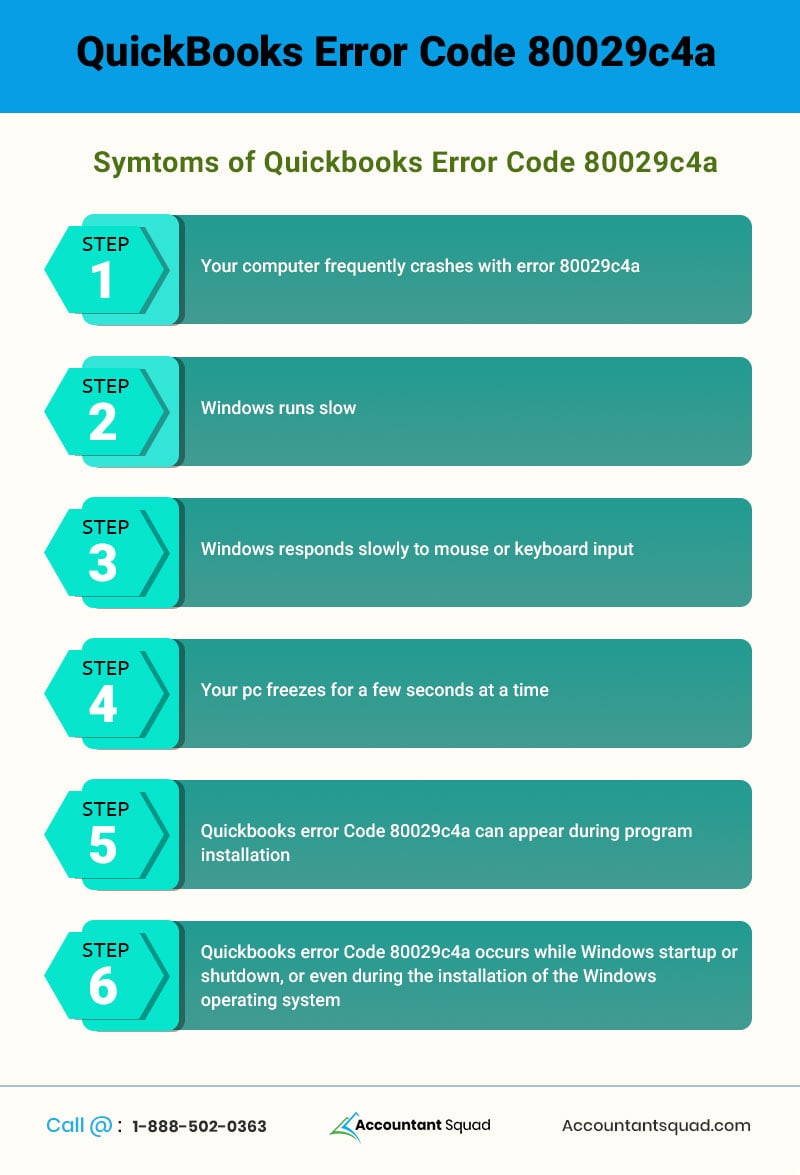
You usually observe the following symptoms when QuickBooks Error 80029c4a occurs -
- QuickBooks Error Code 80029c4a will flash on your computer screen.
- Your active program window will get crashed.
- PC will crash frequently with an error message being displayed.
- Your computer will run very slowly.
- Windows will not respond at all or will very slowly respond to mouse clicks or keyboard keys.
- You will find that your computer freezes again and again.
Also Read: How to Resolve QuickBooks Error 6000 832?
Solutions to Fix QuickBooks Error Code 80029c4a
Various solutions are available to fix QuickBooks Error 80029c4a. Before trying to make any changes to your PC or QuickBooks, do not forget to back up your computer and QuickBooks data. You should also have your Windows and QuickBooks installation CDs and license numbers available. If in case, QuickBooks 2016 R9 installation brings this error, you can directly go to a clean install solution.
Update Avast antivirus
- Look for the Avast icon.
- Right-click it.
- From the list that appears, select Update.
- You have to follow the prompts to update it.
- Make sure that the engine and virus definitions are updated.
Change antivirus file-blocking settings
Make sure your antivirus or firewall is not blocking QuickBooks software’s essential files. For this, you have to check the quarantined files. There should be no essential QB file in the quarantined files list. If needed, you can get the necessary instructions from the help documentation of the antivirus or can contact an expert.
Execute Reboot.bat file
- First of all, close to your QuickBooks.
- Look for QB Desktop icon.
- Right-click it.
- From the list that appears on right-clicking, select Properties.
- you will have the Properties window on your screen.
- In the Properties window, click on the Open file location button.
- This will take you to the folder that contains the reboot.bat file.
- Go to reboot.bat file and right-click it.
- From the list, click on Run as Administrator. Make sure to run the file as Windows Administrator. Take into consideration that file may appear as reboot.bat or only as a reboot. This depends on how the Folder Options are configured.
- After that, you should close the Window.
- Finally, you have to restart your PC.
- Now, check for QuickBooks Error Code 80029c4a.
Perform QuickBooks Desktop Clean Install
- Firstly, you will be required to reinstall using the QuickBooks Clean Install Tool.
- Then, update QuickBooks to the latest version of the application which is available.
- After this, from the File menu, select the option for Close Company/Logoff.
- Please do keep in mind that if you have opened multiple company files in QuickBooks Desktop at this point in time, you have to do this step for each and every company that is opened.
- Next, go to the File menu then select the Exit option.
- Meanwhile, right-click on the QuickBooks Desktop icon which is located on your Desktop and click on Run as administrator. At this stage, make sure you are on the No Company Open screen.
- After that, go to the Help option, select Update QuickBooks and click on Options.
- Next, select the Mark All button then Save it.
- Then select Update Now, and the Reset Update option under it and finally select Get Updates.
- When Update Complete appears on the screen, close QuickBooks Desktop.
- Again, open QuickBooks Desktop. This time you might get a message to install an update. Select Yes for that.
- Restart your computer when the installation is complete.
- Lastly, check for QuickBooks error 80029c4a.
Repair QuickBooks
- First of all, close to your QuickBooks.
- After that press the Windows key on your keyboard.
- Look for the Control Panel and click on it to open it.
- Go to Uninstall or change a program.
- Scroll through the programs list and find QuickBooks.
- Choose Uninstall/Change.
- The QuickBooks installation window will appear on the screen.
- In this window, click the next button.
- Look for the Repair button and click on it.
- After the process has completed, your QuickBooks would have been repaired.
- After this, you have to restart your PC.
- At last, Check whether QuickBooks error 80029c4a is appearing or not.
To Sum Up:
After going through the blog the users must have got a better knowledge of what is QuickBooks error 80029c4a. We have also discussed the symptoms and causes of this error. We hope that you have got the idea of “how to troubleshoot Code 80029c4a?” on your own. Expectantly, installing QuickBooks Clean Install Tool will surely resolve this error. The above-given solutions can help fix QuickBooks Error Code 80029c4a. If you are not able to fix this error, you can seek professional help to resolve it by contacting our certified QuickBooks support professionals at our QuickBooks 24/7 Support Phone Number +1-855-365-6O12

 (110 votes, average: 4.60 out of 5)
You need to be a registered member to rate this.
 Loading...


