Enhancements and Improvements in QuickBooks Desktop 2019

QuickBooks Desktop 2019 is full of features and enhanced functionality. It is embedded with advanced bug fixes and improved features to uplift business efficiency. There are improvements in several categories, and many features are added in QuickBooks desktop Pro 2019, QB Premier 2019, etc.
In this article, we will glance in brief at all these advancements. We will not only understand QuickBooks Desktop pro-2019 features but also for the other versions as well. Some of these features are totally new while others are enhancements to the existing ones.
Features
1.The Invoice History Tracker-
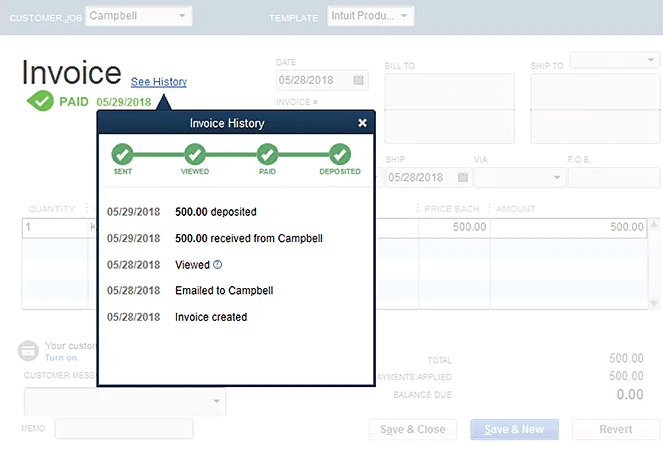
This feature is a part of the QuickBooks Desktop pro 2019 features and it also available for Premier Accountant 2019, & Enterprise 19.0 version. You can establish a proper communication channel with clients, and moreover, have info on ‘Invoice history information.’
There are several key aspects to it
- A real-time invoice tracker
- Create a data feature
- Email date & customer name facility
- Invoice view date option
- The date & amount info of the ‘Customer received ’
- The date & amount provided for the ‘make a deposit’ captures in QuickBooks
- Improved status tracking
- Invoice Tracker
- Real-time visibility of the Invoice status.
The feature is unavailable in Microsoft Outlook 2010 supported system
How to activate this feature?
- Firstly, ‘Create Invoices Window’
- Now choose ‘See history’ link on the form name
2.Credit Transfer between jobs of the customer
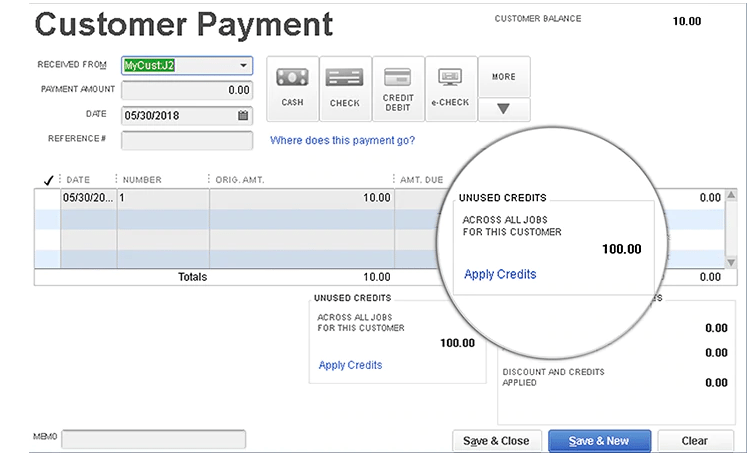
You can avail this feature in QuickBooks Desktop Pro, Premier, Accountant 2019 and Enterprise 19 versions. You can easily apply for customer credits across various jobs of a particular customer. There is a new column section in the apply credit window that shows Customer and Job for which the credit is assigned. The user can attach credit to other jobs of that particular customer record.
The Key Aspects are:
- It is a huge time saver
- You can apply ‘Credit memos’ across various jobs.
- A special account can be made for Credit transfer.
- There is a unique account, namely ‘A/c for credit ’
- The automatically made account is listed as ‘Inactive’ on the Chart of Accounts to avoid confusion.
Some important points
- You can’t undo credit transfer from one job to another for the same customer. And can do this by making ‘additional manual entries.’
- But, you can’t transfer credits between jobs without using Chart of Accounts.
- The feature will not be working on an ‘Accountant’s copy ‘ for any client data.
How to activate this feature?
- A customer has opened (the unapplied) credits
- Then go to the main ribbon on the displayed ‘Create invoices window’ – Select ‘Apply for credits.’
Get to know everything about the credit transfer btw jobs of the customer by an expert at QuickBooks Support number 1.855.365.6O12.
3. Use the ‘Write checks’ feature to create Bill Payment.
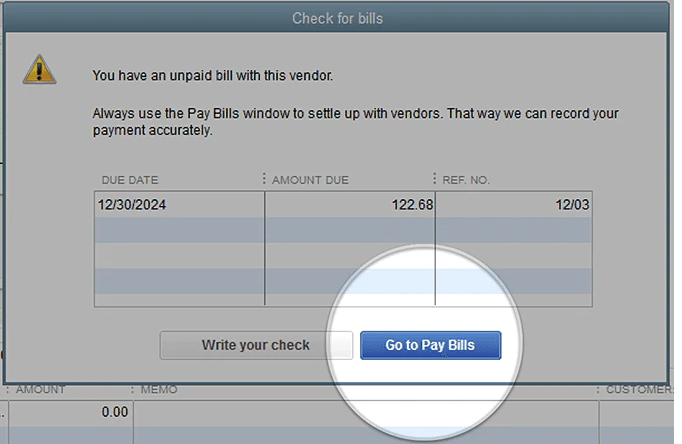
The feature is available in QuickBooks Pro, premier, Accountant 2019 and Enterprise 19 versions. Here whenever you launch a distilled ‘selected vendor’s unpaid bills, the user can select to continue ‘Write you Check’ without assigning it to an ‘open vendor bill.’
The key aspects are:
- Grants visibility to ‘Unpaid vendor bills.
- Manage payments efficiently.
- Guides users to link their checks with open bills
- Show Open bills for any specific vendor to give a Quick access
- Shows ‘Open bills’ for a specific vendor to give Quick Access.
How to activate the feature
You can activate when the Check for Bills prompt appears while making ‘Write Check for a vendor.’
- First, go to the Menu bar
- Select Banking
- Press on the ‘Write check’ option
- When you are at the ‘Pay to the order of field’ option- then enter the name that has Unpaid bills.
4.‘The Employee Pay adjustment history’ option- Improved
The feature is present in QuickBooks Pro, Premier, Accountant 2019 and Enterprise 18 v maintenance release ‘R3’ or the latest
Note: It is a Splitstream release for the ‘later maintenance release’ of QuickBooks 2018.
The user can use this feature in the Payroll subscription and can track employee pay rates (on an hourly basis).
The Key Aspects are:
It can track-
- Payroll items
- Salary items
- Bonus items & Commissions item
How to activate this feature?
- Go to the Menu bar and select Reports
- Now go to Employees and Payroll
- Now choose the ‘Employee pay adjustments history’ option
Note: The feature can be used with an active ‘Basic, Enhanced or Assisted’ Payroll subscription.
5. Sick and Vacation Pay Tracker- improved
The feature is available for QuickBooks Pro, Premier, Accountant 2019and Enterprise 18 versions along with an enhanced payroll subscription.
The Key aspects are
- The feature gives you better tracking and reporting of ‘Sick and Vacation’ time.
- It provides a warning when you save Paycheck exceeding employee’s available Sick or vacation time.
- You can get info about ‘Accrued, used and Available sick and vacation hours’ by reformatting Paystub.
How to activate this feature?
To setup new maximum type defaults for Sick /Vacation time, you can log-in as ‘Admin user’ in single user mode.
- First, go to Menu bar- Select ‘’
- Next, ‘Choose Preferences’
- Choose Payroll and Employees
- Now select the ‘company preferences’ tab
- Choose ‘Sick &Vacation’ option
6. Sensitive Payroll Permissions- improved.
The feature is there only in QuickBooks Enterprise 19. The admin user gives a warning when providing permission to have Payroll transaction access’.
The Key Aspects are
- It regulates access to sensitive payroll transactions
- Gives you the opportunity to regulate access to sensitive information. For example – ‘Payroll transactions.’
How to activate this feature?
- Go to Menu bar
- Choose Company
- Then select
- After this, choose Setup ‘Users and Roles’
Note: Only admin user can make any modification.
7. The Inactive inventory items can be put in the Inventory reports totals.
You can avail this feature in QB Pro, premier, Accountant 2019 and the Enterprise versions. Previously, you could not include or exclude inactive items. There will be a difference in the inventory value amount compared to the Inventory Asset account total amount.
The Key Aspects are:
- The users can include/exclude Inactive items
- Balance Inventory reports with inventory assets on the Balance sheet and general sheet.
- Easy reconciliation of Inventory assets accounts total can be done.
How to activate this feature?
- First, go to the Menu bar
- Next select reports
- Now choose ‘’
- Select Inventory valuation summary or the Inventory valuation detail.
8.Quick and Easy Upgrade.
This can be done for QuickBooks Pro, Premier, and Enterprise 18. With just a couple of clicks, you get the newest version of QuickBooks Desktop.
The Key Aspects are:
- You can upgrade with two clicks and get the newest version on QuickBooks Desktop
- Upgradation is automated
- Company file is a part of ‘No company file ’
How to activate this feature?
- First, go to the Menu bar
- Now choose File
- Navigate to Utilities
- Now navigate to ‘Move QuickBooks to another’
9. Intuit Interchange Format (IIF) and data imports- modified
The feature is there in QuickBooks Pro, Premier, Accountant 2019 & Enterprise 19.
The Key aspects are:
- Improved IIF Importing
- Check and then validate before Importing
- Report if issues or concerns can be derived if the import fails.
- The user can correct errors and import the amended reports separately.
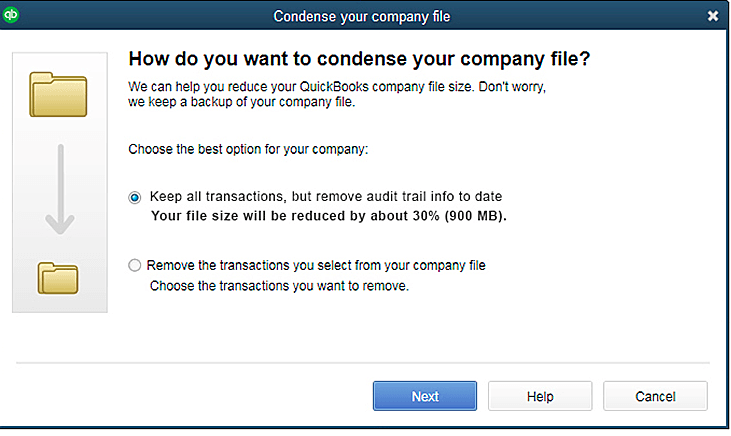
10. Condense Data File feature- improved.
This is available in QuickBooks Pro, Premier, Accountant 2019 and Enterprise 19.
The Key Aspects are:
- It reduces Company file size without losing any transactional data.
- It deletes ‘Audit Trail data’ from the file that is eliminated. This will reduce the file size.
- The feature has internal optimization of the database.
- Once the entire process is complete, the file size is reduced to a significantly smaller size. It can decrease up to 45 % of the file size.
How to activate the feature?
- Go to QuickBooks Accountant Menu bar
- Choose Accountant
- Select ‘Condense Data’
Or
- Go to the Client version of QuickBooks in the Menu bar
- Choose ‘File’
- Now navigate to ‘’
- Choose ‘Condense Data’
Are you looking to Condense a Data file? Call at QuickBooks Online Support number to get it done without mistake.
11. Make a backup for your ‘Data File’ with the Intuit Data Protect.
You can get this in QuickBooks Pro, premier, Accountant and Enterprise 19 version. This is a cloud-based facility to have an ‘Automatic data backup’ by automatically backing up the QuickBooks Data file.
The Key Aspects are:
- It streamlines the Setup process
- There is a simplified automated QuickBooks Backups to ‘Intuit cloud-based service.’
- Automated Data Backup
- The users can utilize Critical Data/ documents in the backup routine
- The user gets success/ failure notifications of the scheduled backups.
How to activate this feature?
- First Go to File menu
- Choose Backup Company
12. Purchase Order Worksheet- Inventory Process.
This is available for QuickBooks Platinum subscribers of QuickBooks Enterprise 18 maintenance release R5 or the newer versions with Advanced Inventory option enabled.
The key Aspects are:
- The feature provides the user with an Improved receiving process.
- Reduced data entry errors and increased efficiency.
Note: To use this feature on the mobile you have to follow instructions given on the ‘Site Operations preference dialog.’ You can use this feature with the ‘Advanced inventory module.’
How to Use this feature?
You need to log-in to admin user to enable this feature from the Menu bar by choosing below options
- Navigate to ‘Edit’
- Go to preferences
- Navigate to Items and Inventory
- Now go to Advanced Inventory settings
- Now go to Site operations( you need internet for this).
Once you see Purchase Order Worksheet is enabled then perform the below steps:
- First Navigate to Menu Bar
- Now choose Vendors>>Purchase Order management worksheet or select the same option from the Inventory ’
Note: Use this worksheet without Mobile app/scanner by manually printing worksheet and marking receipts of the Line Item details.
13. Updated QuickBooks MAC 2019.
The Key Aspects are:
- iCloud Doc sharing- This method can be used for sharing QuickBooks for MAC file using the ‘iCloud sync.’
- Reconcile the discrepancy report for Bank/Credit card- With this you can view the changes done to the reconciled transactions.
- Square Import- Import Sales data easily from the Square by using .csv file type.
- Email Tracker- It tracks email dates sent from the tab in ‘Vendor or Customers Centers.
- Report Windows- Provides improved spacing & readability mode.
- User Passwords- Personal Info is encrypted, and you need ‘User Password’ to access it.
Now you can see QuickBooks Desktop 2019 is full of special features and tools for making work easier and comfortable. Though, it can be a little difficult at times to understand the new functionalities. Give a Quick call at QuickBooks Support number 1.855.365.6O12 and live stress-free.

 (118 votes, average: 4.40 out of 5)
You need to be a registered member to rate this.
 Loading...