
Know About QuickBooks File Manager Application

QuickBooks File manager is the only and best app for QuickBooks Accountant and QuickBooks Enterprise Accountant. It is capable of containing company files, together with usernames and passwords, in a protected environment. The app permits users to import client’s QuickBooks files and easily upgrade from one QuickBooks version to another.
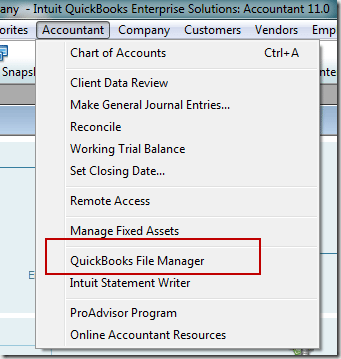
You may run QuickBooks File Manager via an icon from your desktop or from the Accountant menu in QuickBooks Accountant Editions.
What can you do in QuickBooks File Manager?
- Make a client list that builds a virtual view of your hard drive, groups clients’ QuickBooks files by type, and holds locations of clients’ company files.
- Preserve login information for your clients; QuickBooks files in the Password Vault lets you open a client’s file from the client list and without looking up the login information.
- Upgrade many clients’ QuickBooks files to the recent version of QuickBooks in a batch.
- Builds Groups of clients that you may define.
How does it work?
- It helps manage your client folders and companies in a user-friendly directory that is based on the user’s original orientation.
- It merges all the company files for every client into their specific format (.QBW, .QBB, .QBA, and .QBM)This is done for the convenience of the organization.
- It remembers the username and password for each file for easy opening of the file when selecting to open the file from File Manager.

3 Ways to start QuickBooks File Manager
- On QuickBooks Accountant menu, choose QuickBooks File Manager.
- On your Desktop, you may press the QuickBooks File Manager icon.
- From the Windows Start menu, visit the Programs > QuickBooks > File Manager.
Note: Run the latest version of QuickBooks File Manager installed.
Also Read: Exporting Chart of Accounts to New QuickBooks Company File
2 Ways to import QuickBooks files
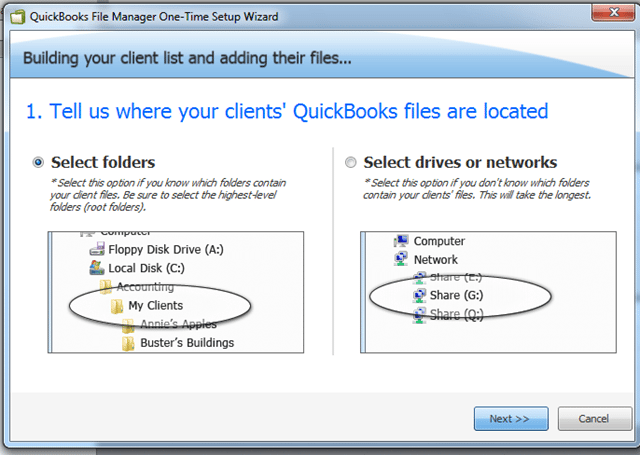
- On the QuickBooks File Manager, visit the Clients drop-down and select Add Clients via, then choose Update Client List Wizard.
- Import From client folder names, if you have already organized the company files and folders into a format according to your preference.
- Import From QuickBooks file names, if you have not organized your files and folders and you want the File Manager to scan your device and import the files. It will also name the files the same as how they are named on your PC or network.
- Drag and drop the files from Windows File Explorer into File Manager.
Open the company file from File Manager
- You can double click on the file, or visit the Files drop-down, then press Open in QuickBooks.
Note: Two files can also be started at the same time via the file manager (when using the accountant edition.) - You may also convert/ restore files. To do this, you may visit the Files > Restore to QBW, or Convert to QBA.
Manage and combine client folders
- You may see your grouped clients into preferred groups based off of your clients.
- QuickBooks File Manager automatically merges the files by year in the Groups dropdown.
- You can supervise your groups by visiting the Groups > Add/Edit groups, or Delete Current group when a group is chosen.
- You may also look for clients by any particular term with the search option.
- You can merge client folders by choosing both folders, right-click then choose Merge selected clients.
Note: It groups all the files from all folders that were merged, that will help you to lose no files further. - You may also manage the client folders and files from the Files dropdown.
- When a client is chosen from the client list, the information will populate in the “Files” section to the right. After a file has been opened through the File Manager, file information will populate in the “Information” tab that is to the right of the “Files tab”
Password Vault
- The Password vault helps preserve your username and password for any company file you contain.
- You also get the opportunity to supervise your saved passwords by visiting the Password Vault.
Note: You need a confirmation to do this. - You may also manage your Password Vault login info from Password Vault > Change Password Vault login. If you want to protect it, Password Vault needs the user to build a username and password before adding client files to it.
Batch Upgrade (Does not apply to the UK)
- The batch upgrade is responsible for decreasing the time of upgrading company files by upgrading all selected files at once.
- You can batch upgrade files by visiting Batch Upgrade > Clients > Upgrade selected files.
Note: You will be able to notice every failed upgrade that occurs inside this window by selecting List unsuccessful Upgrades.
File Manager backup
This one provides an available backup system that prevents your settings and directories so if at all you face data loss, it can be restored to its recent version and you can use it safely. For more information don’t forget to contact QuickBooks Online Support at +1-855-365-6O12.

 (93 votes, average: 4.70 out of 5)
You need to be a registered member to rate this.
 Loading...


