Accountant Squad
  • Home
  • About Us
  • Services
    • QuickBooks 24/7 Support
    • QuickBooks Error Tech Support
    • QuickBooks Desktop Support
    • QuickBooks Online Support
    • QuickBooks Point of Sale Support
    • QuickBooks Payroll Support
    • QuickBooks MAC Support
    • Quickbooks Enterprise Support
  • Blogs
  • Faqs
  • Contact
1-877-221-9520
  • Home
  • Blogs
  • QuickBooks Error Support
  • Troubleshoot QuickBooks Point of Sale Error 1330

Troubleshoot QuickBooks Point of Sale Error 1330

QuickBooks POS Error 1330
Published by John Smith at March 16, 2019
Categories
  • QuickBooks Error Support
Tags
  • QuickBooks POS Error 1330

QuickBooks is an efficient software with numerous features and different versions. QuickBooks Point Of Sale is a part of QB helps in managing your accounting transactions. Any bugs and errors can hamper your business productivity. QuickBooks POS Error 1330 is one of the most common errors which occur while using or updating QuickBooks.

In this blog, we will discuss in about the causes and various methods to resolve QuickBooks Point Of Sale Error 1330 effectively.

Causes of QuickBooks Point Of Sale Error 1330

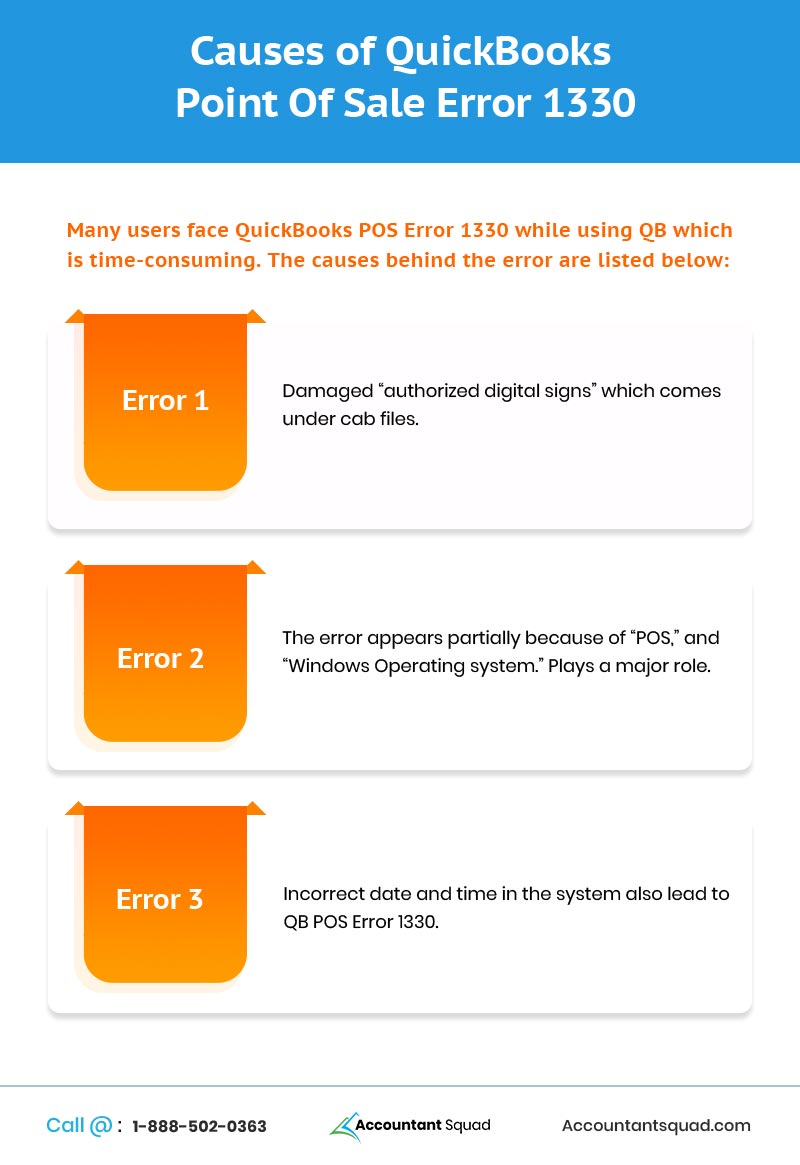
Many users face QuickBooks POS Error 1330 while using QB which is time-consuming. The causes behind the error are listed below:

  • Damaged “authorized digital signs” which comes under cab files.
  • The error appears partially because of “POS,” and “Windows Operating system.” Plays a major role.
  • Incorrect date and time in the system also lead to QB POS Error 1330.

QuickBooks Point Of Sale 1330Methods to Resolve QuickBooks POS Error 1330
You can resolve QuickBooks Point Of Sale Error 1330 by following different methods, some of them are listed below:

Method I:

  1. Reboot your PC and login as Administrator.
  2. Browse and download Point of Sale updates.
  3. Follow the steps below to end all the running applications including POS services.

Go to Task Manager and select the Processes tab.

  • qbpos.exe
  • QBPOSShell.exe
  • QBPOSDBService.exe

You need to close the following POS services: QBPOS Database Manager mentioned below:

  • Search services.msc
  • Open the Services window and browse for QBPOS Database Manager vXX.
  • Close the POS services.
  • Close the services window.

Delete the data regarding the product update folder in your system and to do so, follow the steps below:

  • Go to Windows Start and open Windows Explorer window.
  • Click show has hidden window folders.
  • Search following location: C:\Documents and Settings\All Users\Application Data\Intuit\QuickBooks POS XX\Update.
  • Go to File menu and press Delete option that appears on the window.
  • Close Windows Explorer and update QuickBooks Point of Sale.

You Can Also Read: Advantages of using QuickBooks Point of Sale

Method II:

  1. Firstly, uninstall QuickBooks POS.
  2. Save the files opened on your PC and stop all the running applications.
  3. Press Windows + R to open a Run command window.
  4. Type Control Panel and press Enter.
  5. Click on Add or Remove programs
  6. Select QuickBooks POS from the list >>Change/Remove option.
  7. Press Yes to uninstall the application.
  8. Go to C drive and Rename the QB POS.
  9. Rename the QBPOSDBSrvUser folder placed in your C drive (C:\Documents and Settings).
  10. You have to delete the login for
  11. Select QBPOSDBSrvUser from the list and delete the account.
  12. Reboot your PC and re-install QuickBooks POS.

This article will help you resolve QuickBooks POS Error 1330 easily, the steps are technical and you might get stuck following any procedure. Get in touch with our experts, call us on our QuickBooks Customer Support Phone Number 1-877-221-952O.

113 votes, average: 4.50 out of 5113 votes, average: 4.50 out of 5113 votes, average: 4.50 out of 5113 votes, average: 4.50 out of 5113 votes, average: 4.50 out of 5 (113 votes, average: 4.50 out of 5)
You need to be a registered member to rate this.
Loading...

Leave a Reply Cancel reply

Your email address will not be published. Required fields are marked *

Related posts

QuickBooks Error 185
November 17, 2020

How to Troubleshoot QuickBooks Error Code 185?


Read more
QuickBooks Payroll Error 20102
October 7, 2020

Resolving Run-Time Error: QuickBooks Payroll Error 20102


Read more
quickbooks banking error 105
July 7, 2020

Troubleshooting Solutions to get rid of QuickBooks Error 105


Read more

Search Here

How can we help you?

Accountant Squad aims to provide global support, as well as technical assistance for the QuickBooks software. We care for you. Dial our Support Helpline and get connected to the best advisors.

Recent Posts

  • How to Troubleshoot QuickBooks Error Code 185?

    November 17, 2020
  • Learn the process to create a clearing account in QuickBooks

    November 3, 2020
  • How to deal with QuickBooks exeadapter error?

    October 24, 2020

Categories

  • How to (118)
  • QuickBooks 2020 (10)
  • QuickBooks Desktop Support (50)
  • QuickBooks Enterprise Support (7)
  • QuickBooks Error Support (156)
  • QuickBooks MAC Support (3)
  • QuickBooks online support (20)
  • QuickBooks Payroll Support (8)
  • QuickBooks Point Of Sale Support (8)
  • QuickBooks Support (88)
  • QuickBooks Tools (9)

Quick Links

  • About
  • Service Offerings
  • Testimonials
  • Blogs
  • Frequently Asked Questions
  • Contact
  • Disclaimer

Services

  • QuickBooks Desktop Support
  • QuickBooks Online Support
  • QuickBooks POS Support
  • QuickBooks Payroll Support
  • QuickBooks MAC Support
  • Quickbooks Enterprise Support
  • QuickBooks Error Tech Support

Contact Information

Address: 649 Blythe CT APT 7A, SUNNYVALE, CA 94085
Toll Free: 1-877-221-9520

[email protected]

Disclaimer

We are a technical support provider that works independently of Intuit Inc. The logos of Intuit, QuickBooks, Quicken, TurboTax, etc. that have been used in our site are registered trademarks of the respective organizations, and are used in our site for reference purposes only. One can subscribe to the same services by hitting the respective OEM’s site, i.e. Intuit QuickBooks. The subject matter on the website is for reference purposes only and does not substitute the advice of a professional accountant or a certified CPA. Read More...

© 2018 Accountant Squad. All Rights Reserved.
  • Terms And Conditions
  • Refund Policy
  • Privacy Policy